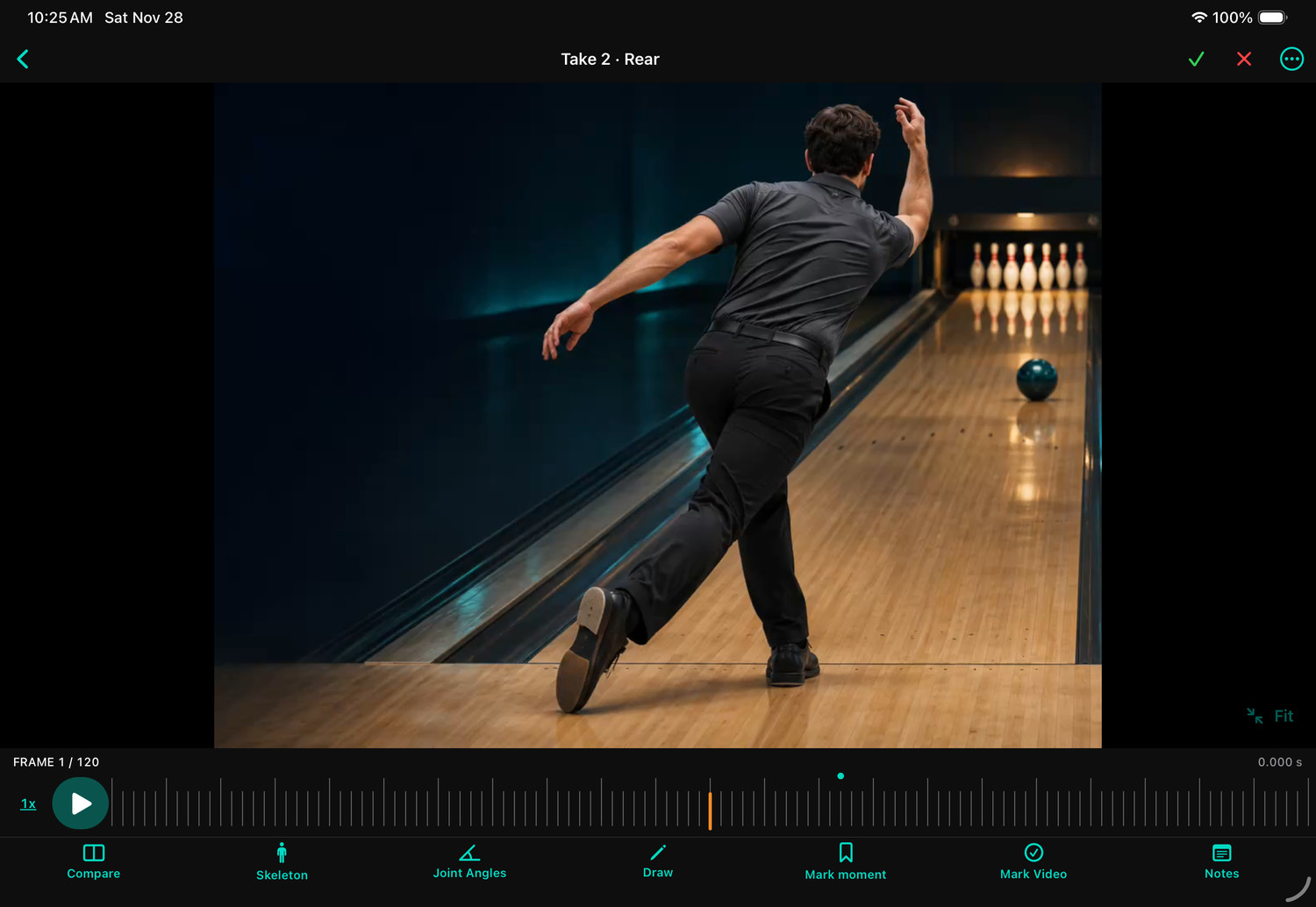
01 CAPTURE & REVIEW
Find the frame that matters.
Record or import a clip, step through the delivery and mark the release. Draw a reference or note what to try on the next shot.
BOWLING VIDEO ANALYSIS
Bowling happens fast. ReleaseReplay lets you slow down the delivery, compare angles and show exactly what you want the bowler to try next.
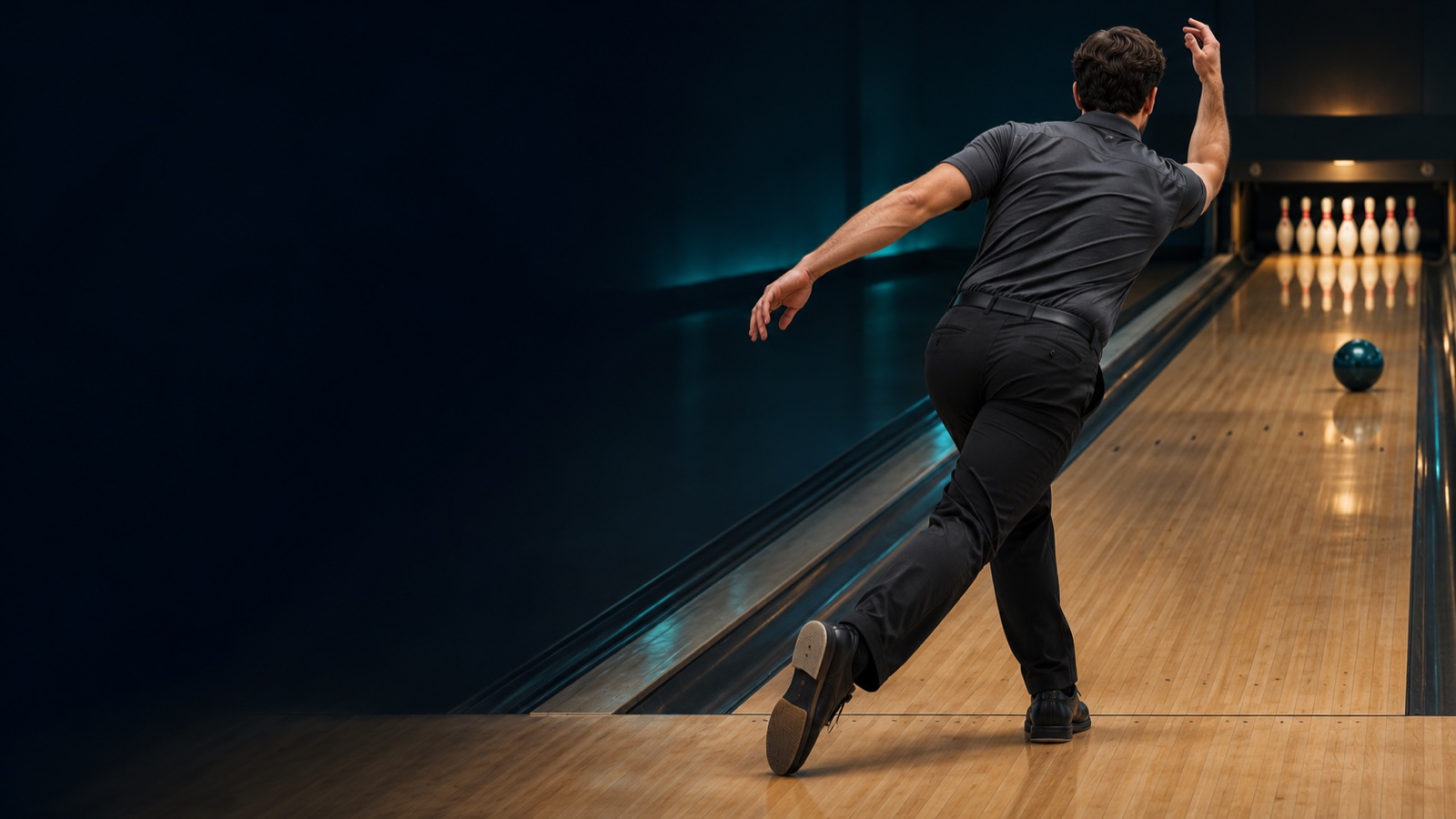
Start with one camera, or link several views of the same delivery. Turn your footage into one clear coaching cue.
01 CAPTURE & REVIEW
Record or import a clip, step through the delivery and mark the release. Draw a reference or note what to try on the next shot.
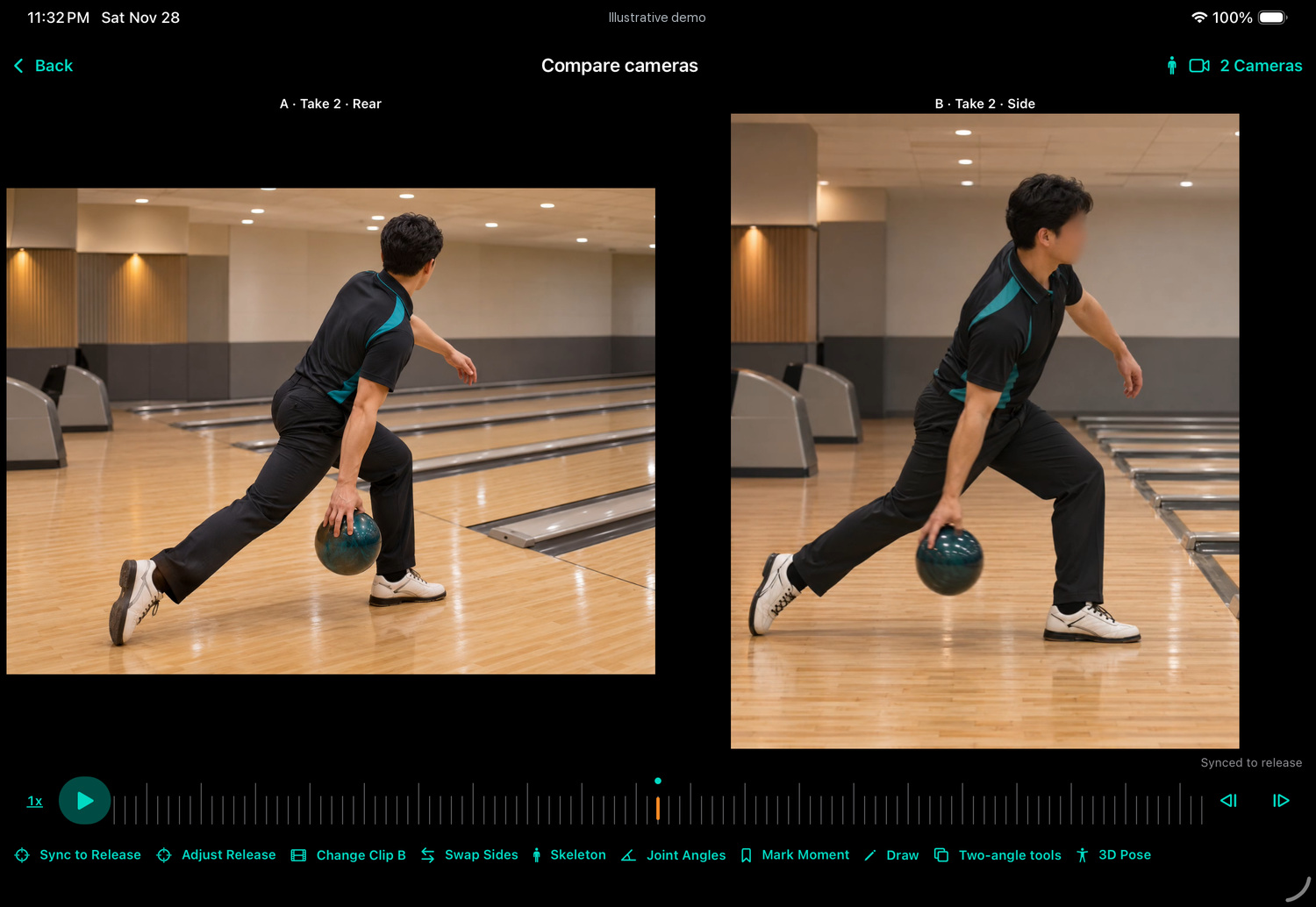
02 COMPARE & EXPLAIN
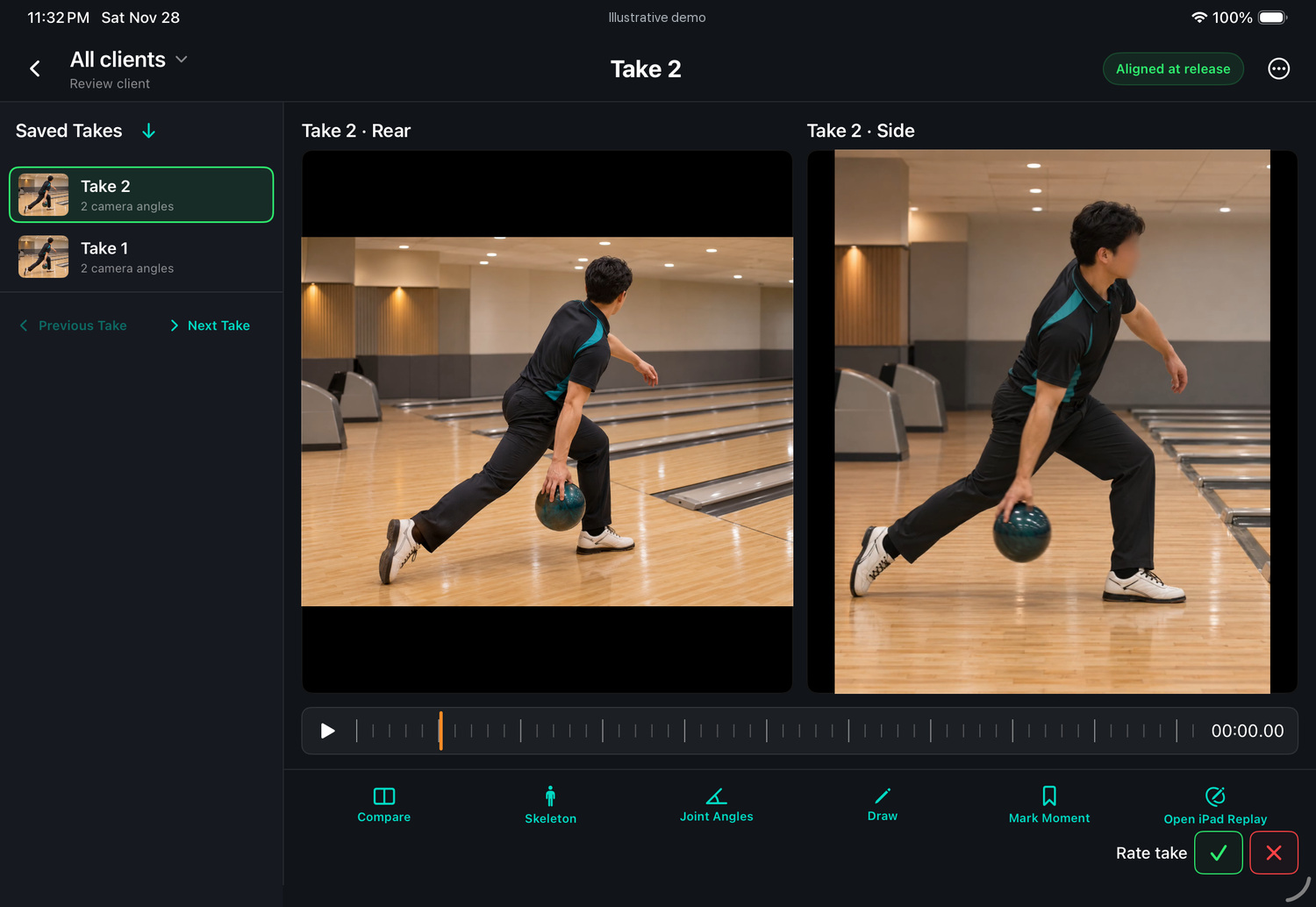
Link supported cameras to record one delivery from different angles. Line up clips by their release marks and compare the parts of the move you’re coaching.
03 ORGANIZE & RETURN
Group clips by client, rate takes and revisit saved recordings in Coach’s Desk. Make it easy to return to the shot that illustrates the change.
From finding the release frame to showing how the ball moves down the lane, pick the tool that makes your coaching cue clear.
01
Slow down the delivery, find the moment the ball leaves the hand and mark it for review.
02
Start and stop linked cameras from one controller, then review their views of the same take together.
03
Compare camera views side by side. Fine-tune the release mark in either clip a frame at a time to line up the action.
04
Show selected joint angles and compare body positions. The values are video-based estimates and depend on the camera view.
05
Follow the visible ball path down the lane with a steady camera and an unobstructed view.
06
Draw lines, circles, angles or freehand cues directly on a frame to show what to try on the next shot.
07
Find clips by client, review and rate takes, and keep notes on the moments you want to revisit.
08
Use the Apple Watch companion to control a linked take. On supported camera setups, an open palm can start or stop recording.
Pick the device that fits the job. Start with what you have and add angles when they help.
Capture a delivery and review it frame by frame at the lane.
Use the larger screen to compare clips, draw and review a linked take.
Start and stop a linked take from your wrist through the paired iPhone. Watch Motion is optional and off by default.
Use Coach’s Desk for larger-screen review and to find the takes you want to revisit.
No. Record or import a single clip to start. Use Linked Recording when you want multiple views of the same delivery.
The companion app controls Start and Stop for a linked take through the paired iPhone. Optional Watch Motion records wrist movement for review alongside a take on compatible hardware.
Watch Motion is a coaching aid, not a measurement of ball speed, rev rate or wrist torque. Supported sensors and camera setup affect what the app can show.
ReleaseReplay is in beta testing. A public App Store release, pricing and launch date have not been announced.
RELEASEREPLAY